
Getting started
Install GitDweep, confirm the two local requirements, and create your first workspace.
GitDweep v0.1.0 supports Windows x64 and Linux x86-64, and uses the Git installation already available on your system. No GitDweep account is required.
Run git --version and make sure Git is available on PATH.
Use Windows x64 or Linux x86-64. macOS is not available in this release.
Choose an installer
GitDweep_0.1.0_x64_en-US.msiUbuntu / Debian.deb packagesudo apt install ./GitDweep_0.1.0_amd64.debPortable LinuxAppImagechmod +x GitDweep_0.1.0_amd64.AppImageFedora / RHEL.rpm packagesudo dnf install ./GitDweep-0.1.0-1.x86_64.rpmYour first five minutes
- 1Add a project
Select a root folder for automatic repository discovery, or add repository folders manually.
- 2Choose repositories
Review the scan results and include only the repositories that belong in this workspace.
- 3Inspect the workspace
Open the project to see branch, working-tree state, ahead/behind counts, and recent commits.
- 4Create an environment
Map the intended branch for each repository, such as
develop,staging, ormain. - 5Preview and switch
Review every planned checkout, choose stash and fetch options, then confirm the coordinated switch.
Core concepts
GitDweep adds a workspace layer around ordinary local Git repositories.
Project
A named workspace that groups related repositories, such as a frontend, APIs, shared packages, and infrastructure.
Repository
An ordinary Git repository on your device. The same repository can be included in more than one project.
Environment
A reusable map from every repository to its intended branch. Environment names and branch patterns are entirely yours.
Enabled repository
A repository included in project-wide fetch, pull, push, and environment-switch operations. Disable one to exclude it.
It invokes your system Git and leaves every repository usable from your terminal, editor, or another Git client.
Projects
Create focused workspaces for products that span several independent repositories.
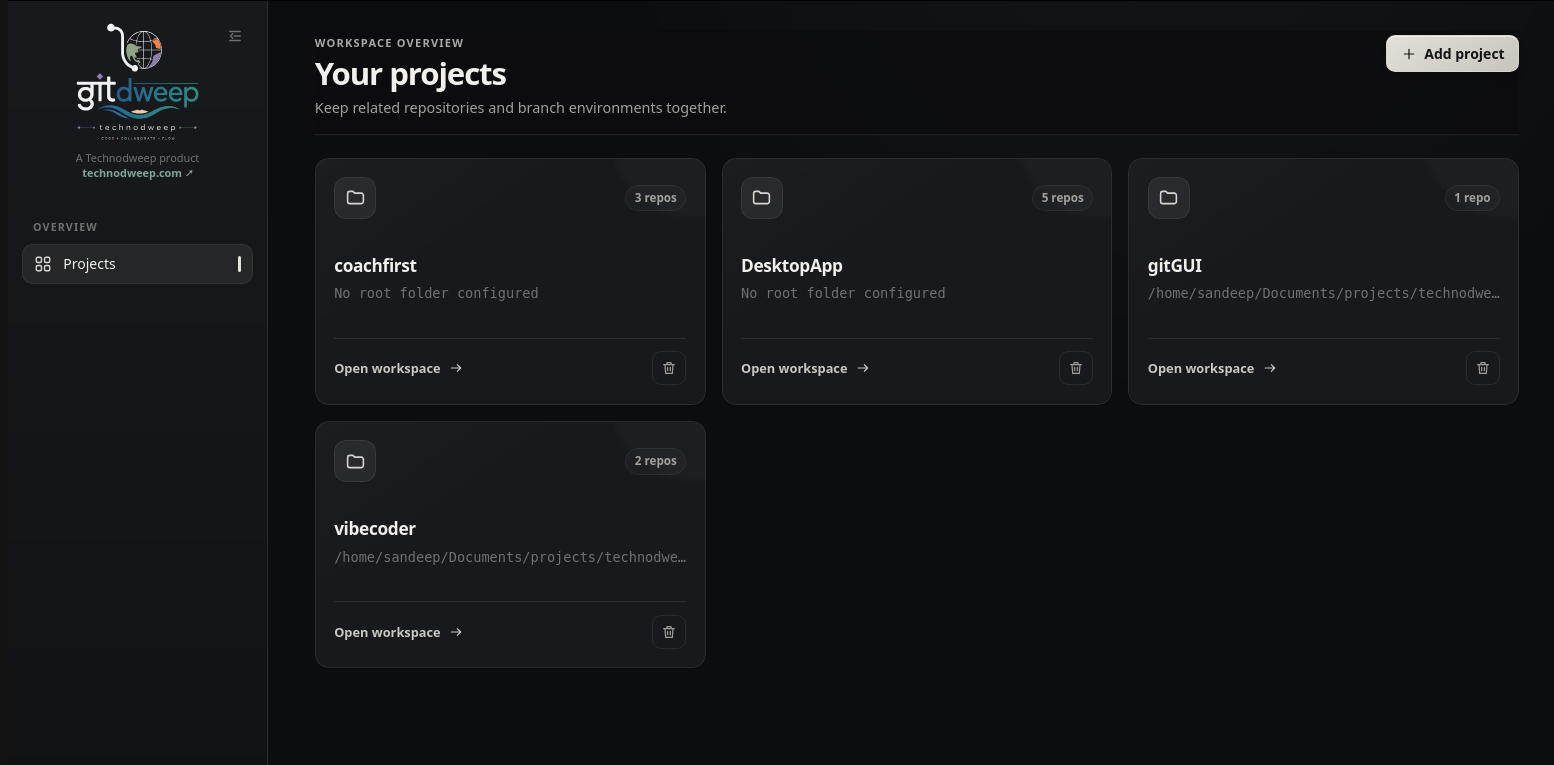
Create from a root folder
- Name the project and choose its root directory.
- GitDweep scans nested folders for Git repositories.
- Select or clear individual discoveries before creation.
- Add an extra repository manually when it lives outside the root.
Manage existing projects
- Open a project card to enter its repository workspace.
- See the root path and repository count at a glance.
- Use the project menu to jump to environments or switching.
- Delete a project after confirmation; this removes the GitDweep workspace record, not the repository folders.
Repository workspace
Read the state of the whole project, then focus on one repository without losing context.
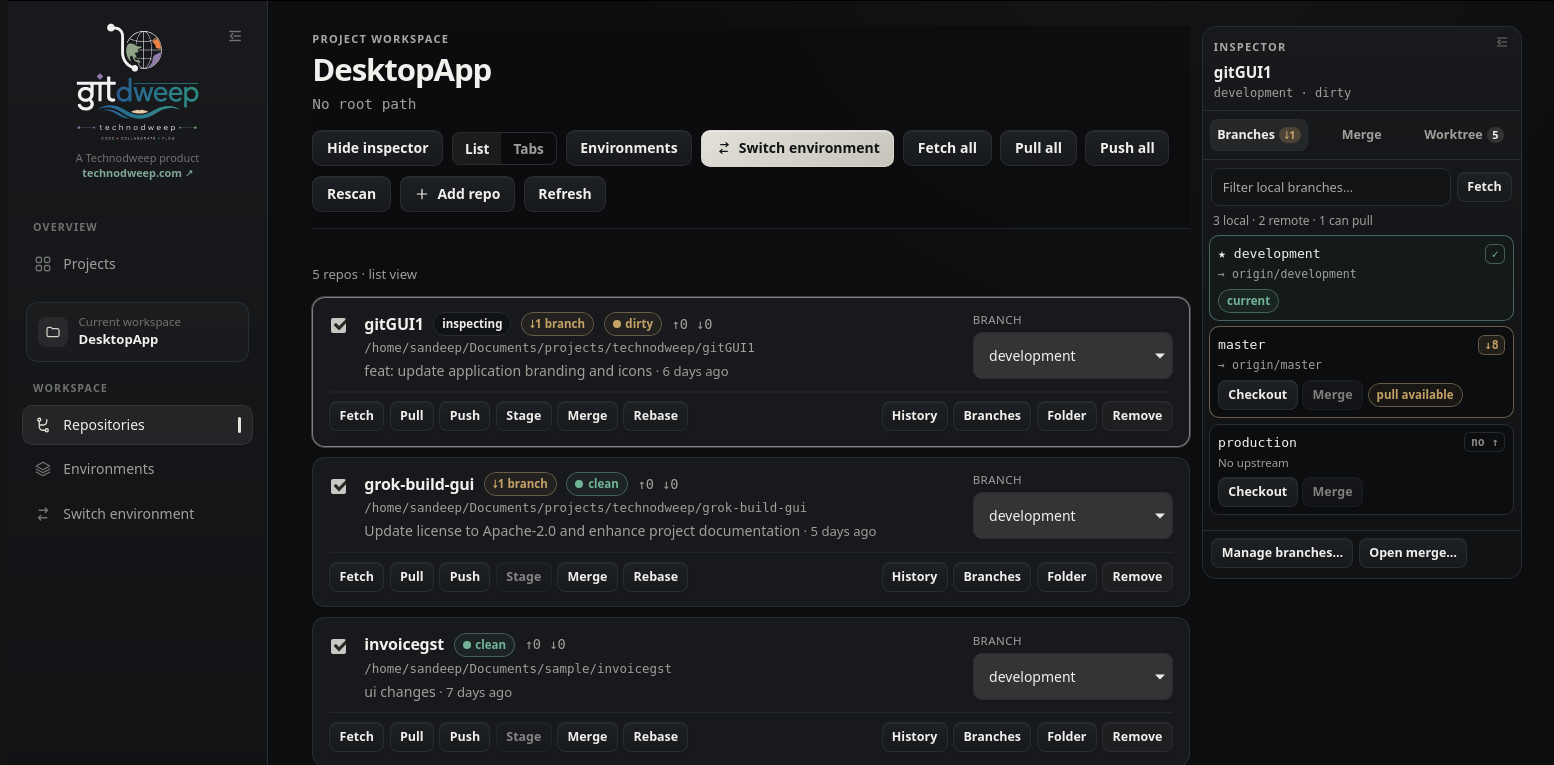
Choose a view
Compare every repository in one vertical list. Each card exposes branch, status, last commit, sync counts, and common actions.
Switch between repository tabs while keeping commit history, changed files, and the selected repository’s controls in view.
Read repository status
Enable or disable repositories. Only enabled repositories take part in project-wide commands.
Open a repository folder. Reveal it in the system file manager from the repository menu.
Refresh on demand. Reload statuses, branches, working-tree changes, and recent commits.
Fetch, pull & push
Run network operations for one repository or every enabled repository, with per-repository results.
Fetch
Refresh all remotes and prune stale remote-tracking references without changing the working tree.
git fetch --all --pruneGuided pull
Fetch the configured upstream first, then compare heads. GitDweep labels the result as up to date, fast-forward, or divergent before you continue.
git pull --ff-onlyPush
Push the current branch. When it has no upstream, GitDweep sets the origin upstream automatically.
git push -u origin <branch>When a pull has diverged
The guided pull dialog shows the local branch, upstream branch, ahead/behind counts, and proposed action. Choose a normal merge to preserve both lines of history, or open the rebase workflow when you intentionally want to replay local commits. Conflicts stay in progress for explicit resolution.
Fetch all, pull all, and push all operate on enabled repositories and report success or failure for each one, so one failing remote does not hide the outcome of the others.
Working tree & commits
Review exact changes, control the index, and create focused commits inside the workspace.
Select changes
See modified, added, deleted, renamed, and untracked files. Select individual paths or work with all changed files.
Inspect the diff
Open a file to view its patch. Toggle between unified and split presentation for staged or unstaged changes.
Stage and commit
Stage or unstage individual files, commit what is already staged, or stage selected files and commit in one action.
Available actions
Add selected paths—or every path—to the Git index.
Remove selected paths—or every path—from the index without deleting working changes.
Restore tracked files to HEAD and delete selected untracked files after confirmation.
Create a commit containing exactly what is already in the index.
Stage the selected files and commit them with the entered message.
Discarding a tracked file removes its local changes; discarding an untracked file deletes it. Review the selected paths and keep a backup when needed.
History & branches
Understand how work is connected, then create, switch, or integrate branches from context.
Commit history
- Browse a colored commit graph with parent lines.
- See branch, remote, tag, and HEAD decorations.
- Read subject, author, relative time, exact date, and commit hash.
- Check out a commit in detached HEAD mode.
- Create and check out a new branch from any commit.
Branch manager
- Filter local branches and refresh remotes.
- See each local branch’s upstream and ahead/behind counts.
- Create a branch and optionally check it out immediately.
- Check out a remote branch as a local tracking branch.
- Delete a local branch safely, with force deletion available after explicit confirmation.
The right-side inspector provides fast access to local branches. Select a non-current branch to check it out or merge it into the current branch; open the full branch manager for remote branches and destructive actions.
Merge, rebase & conflicts
Integrate branches with explicit strategies and keep recovery controls visible when Git stops for conflicts.
Merge strategies
Fast-forward when possible; otherwise create a merge commit.
Preserve a visible integration point even when a fast-forward is possible.
Apply the branch as staged changes, then review and create the final commit yourself.
Rebase workflow
Choose a local or remote branch to rebase the current branch onto. If Git pauses, resolve the listed files, then continue, skip the current commit, or abort and return to the pre-rebase state.
Conflict resolver
- 1Select a conflicted file
GitDweep shows the file content and detects conflict markers.
- 2Choose a resolution
Use ours, use theirs, or edit the file externally and mark the current content resolved.
- 3Finish or recover
Commit to complete a merge; continue a rebase; or abort the operation when the result is not right.
GitDweep blocks a new merge when HEAD is detached or the working tree is dirty. Commit, stash, or discard changes before integrating another branch.
Environments
Save a reusable target branch for every repository in a project.
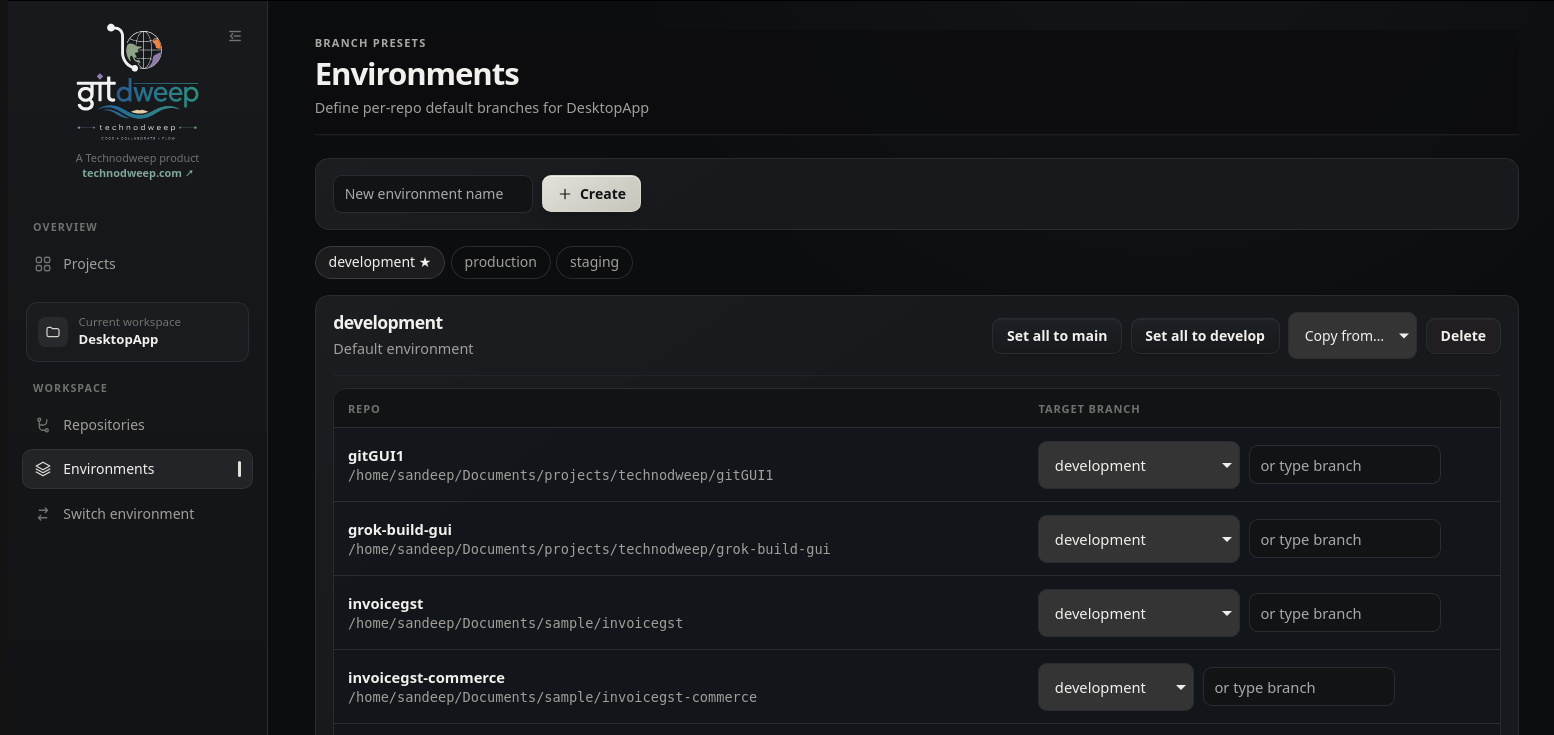
Create and organize
- Create any number of named environments.
- Mark one environment as the project default.
- Switch between environment tabs to edit each map.
- Copy an existing environment’s branch map.
- Delete an environment after confirmation.
Map branches
- Choose a local or remote branch for each repository.
- Type a branch name when it is not in the loaded list.
- Set all repositories to
mainordevelopas a starting point. - Leave a repository unmapped when an environment should not target it.
Use development, staging, and production—or create presets for releases, customers, incidents, feature trains, and any other coordinated branch setup.
Environment switching
Preview the effect on every enabled repository before GitDweep checks out a branch.
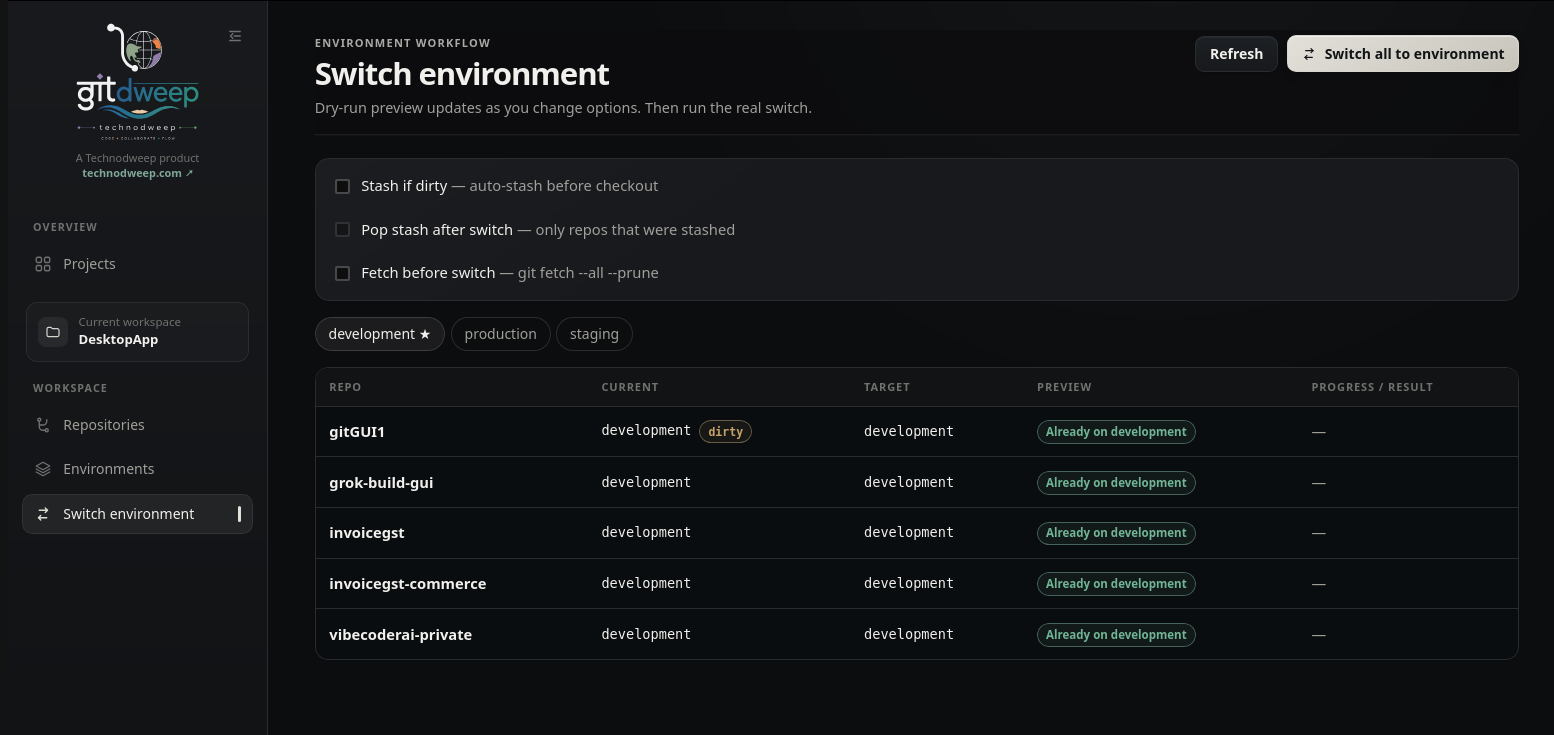
Dry-run states
Switch options
Create a stash before checkout for repositories with local changes.
Pop only the stashes that this switch created after successful checkout.
Refresh remotes in each repository before resolving and checking out the target.
Only enabled repositories participate. The confirmation dialog summarizes selected safety options; during execution, each row reports live progress and its final result independently.
Local data & product boundaries
Know what stays on your device and what remains the responsibility of Git or your remote provider.
Stored by GitDweep
Project definitions, repository membership, enabled state, environments, branch maps, and application settings are kept in a local SQLite database.
~/.local/share/com.technodweep.gitworkspace/git-workspace.dbGitDweep handles locally
- Workspace configuration and UI preferences
- Reading repository and branch state
- Running commands through system Git
- Showing command outcomes and conflicts
Your existing services handle
- Repository hosting and authentication
- SSH keys and credential helpers
- Pull requests, reviews, and collaboration
- Remote availability and access permissions
GitDweep does not upload source code to a GitDweep service or introduce a proprietary repository format.
Current scope
Version 0.1.0 focuses on local multi-repository Git work. Pull-request provider integrations, submodule management, worktree management, and additional platform packages are roadmap items rather than current features.
Troubleshooting & reference
Resolve common Linux startup issues and find the right place for diagnostics.
Blank window or GPU errors
WebKitGTK can have trouble with some GPU drivers, particularly certain NVIDIA configurations. GitDweep sets conservative defaults, but you can also launch development builds with:
export WEBKIT_DISABLE_DMABUF_RENDERER=1 export WEBKIT_DISABLE_COMPOSITING_MODE=1 npm run tauri devIf needed, try software rendering with LIBGL_ALWAYS_SOFTWARE=1 and GDK_BACKEND=x11.
Package compatibility on older Linux releases
GTK, WebKitGTK, and GLIBC come from the operating system. Official Linux artifacts are built for x86-64 Ubuntu 22.04 compatibility; locally built binaries can require newer system libraries.
A repository action is unavailable
Check whether the repository is enabled, HEAD is attached to a branch, the working tree meets the action’s safety requirements, an upstream is configured, and no merge or rebase is already in progress.
Where should I report a problem?
Open a GitHub issue with the GitDweep version, Linux distribution, operation you attempted, and sanitized error text. Never post credentials, private source code, or repository secrets.
Open GitHub issues